Wednesday, April 27, 2022

Logoff Console User using N-able System Shell

         Logout Console User using N-able System Shell

Whether the situation you encounter requires is concerning a stuck console session or session that are in disconnected states that need to be manually logged out, there is software that will help and assist. There are tools such as software for online desktop support that work both on the local network and also over the internet.


Attempting logon to server but it is locked. Can't reboot because it's a server and can't be taken down like that. There are active users on the server with open files. Use N-able System Shell to logoff active console session user. 

Just running the command "logoff" at the System Shell window s not enough.

Click System Shell at the top of the take control viewer window, then run the command query session. That will display the current logged on sessions. Take note of the ID number of the user you want to logoff that's a console session.  

Then run the command logoff and the ID number you retrieved. 

    query session

    logoff  {ID#} 


That will logoff the disconnected or connected session and you'll now be able to login to the to the console. This process has worked every time.   The logoff option also works through RDP and also permits logging off RDP connected desktop sessions as well. 

For RDS servers, the same command that queries connection to the server could be used. You will find the list of users logged in will be longer with a busy remote desktop services server. 


We are all used to remotely accessing into systems and servers on the local network using RDP (Remote Desktop Connection) for example. RDP is the default tool for most admins internally. Online access is typically the same and is just a matter of having the user enter a code for security and then there's a connection for screen sharing. 


Share/Save/Bookmark

Enhance your Support Services with Online Desktop Support Software


Tuesday, March 17, 2015

CentOS 6 and Auto Starting Apache httpd at Boot


Setting Apache To Automatically Start on Boot

Recently I had to install 11 Cent OS servers. These servers were to be all identical and were installed using the simple "web server" option during installation time. 
The servers all had Apache 2.0 installed but the service httpd was not set to start automatically with the system. After applying the SSL certificate to all 11 servers, I wanted to test the installation by simply rebooting the servers to be sure the settings took and stuck.  
Setting Apache httpd to start automatically is simple. This also works with Cent OS 5 (outdated but just in case you need to deploy version 5 for some reason it is good to know). 


Setting Apache To Auto-Start on Boot

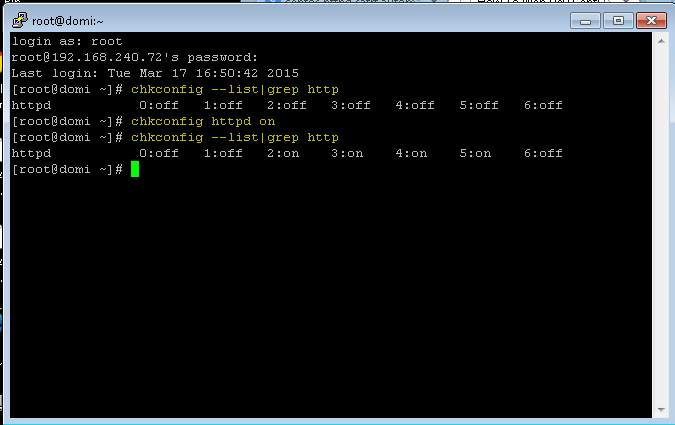
Step 1 – Check to ensure the httpd service (Apache) is installed

[root#] chkconfig --list|grep http

If installed properly, you will see as the output of the command above

[root#] 0:off  1:off  2:off 3:off 4:off 5:off 6:off

Step 2 – Set httpd (Apache) to auto start with the system when re-booted. 


[root#] chkconfig httpd on

Step 3 – Confirm the Apache httpd service is set to auto-start 

Run the same command from Step 1 to see that httpd is set to auto-start
[root#] chkconfig --list|grep http
and will see as the output of the command :
[root#] 0:off  1:off  2:on 3:on 4:on 5:on 6:off

That's it, you're done.  I ran the commands on all servers and they all worked after rebooting. 
Apache httpd started with the system after rebooting. 


Sunday, February 09, 2014

Internet Browser Usage Statistics 2013


Internet Browser Usage Statistics 2013
Major Internet Browsers


Internet Browser Usage Statistics 2013


Chrome has passed Internet Explorer as the Internet browser of choice around the world and that had continued through 2013. Firefox is gaining in usage and some points throughout the year was only points away from Internet Explorer.

When the browser wars began many decades ago, it was not believed that any browser would surpass the might and wide-spread use of IE. Google has done a lot to improve their browser and are working equally as hard to gain traction in the desktop OS arena as well.

Should they commit the resources to an OS as they have done to dominate the browser market we could soon be seeing a new leader in desktop OS deployments.


Saturday, April 07, 2012

Chrome Surpassing Safari and Opera as the Browser of Choice on Apple macs


Image is Courtesy of: www.WebDevelopersNotes.com

Chrome vs Opera vs Safari : Browser Battle


Google's Chrome was released on several years ago and has managed to gain dramatic share in usage,. Although Google also supported Firefox, it seems it's abandoning Firefox and developing Chrome as the competitor of choice to Internet Explorer. Internet Explorer I believe will not be surpassed by Chrome. I find Chrome to a good browser and I use it daily on almost all of my computers but it does not have support for many of the things I need it for. 
For example, I connect to many networking devices and other appliances used in information technology as part of the infrastructure for managing or containing important information system. 


There are many who like and appreciate the "simple and clean interface" but that's all illusion of what a browser today is used for.  I personally dislike not having a menu-bar and no option to add one either. For average web usage such for browsing for videos, music, shopping or social networking, it works well. It lacks the support from developers to enable it to do as much as Internet explorer can. It's a browser, it's not a viable option in many cases to be a front-end application. 


Thursday, March 22, 2012

Configure Idle and Disconnect Timeout Settings in XenApp 6.x

Configure Idle and Disconnect Timeout Settings in XenApp 6.x and XenApp Fundamentals


Configuring idle and disconnect timeout settings in XenApp 6.x and XenApp Fundamentals is crucial for optimizing resource management and enhancing security. These settings determine how long a user session can remain idle before it is automatically disconnected, thereby freeing up system resources for other users. To configure these settings, administrators can access the Citrix App Center, navigate to the desired application server, and specify the appropriate timeout values under the session management settings. By fine-tuning these parameters, organizations can ensure a balance between user convenience and system efficiency. In addition to a better user experience, implementing strict timeout policies can help mitigate potential security risks by reducing the window of opportunity for unauthorized access to idle sessions.

XenApp 6.5 for Windows Server 2008 R2


The session limits applied using the ICA listener configuration utility only affect connections to a XenApp server. The session limits settings in a user policy only apply to XenDesktop.
  •  Click the Start menu, select All Programs, Citrix, Administration Tools, and then click on ICA Listener Configuration.
  • Select the ICA-TCP listener and click the Edit option.  
  • On the Session Limits tab, configure the disconnected sessions timeout in the drop-down menu in the End Disconnected Session section.


    Click Okay and Close.

    These options control how long a user session can stay inactive before disconnecting automatically and releasing system resources for other users. Administrators can set them up by logging into the Citrix App Center, selecting the correct application server, and going to the session management settings. From there, they can adjust the timeout numbers accordingly. Organizations can guarantee a balance between system efficiency and user convenience by adjusting these characteristics. Strict timeout rules can also lessen the window of opportunity for illegal access to idle sessions, which helps reduce possible security threats.  Setting up idle and disconnect timeouts in XenApp 6.x and XenApp Fundamentals is essential to improving security and resource management.