Tuesday, May 14, 2024

Command line - Display User SID with WMIC - All Users


Simple Command line to display user SID - All User SID 

Simple Command line to display user SID - All User SID

This may be useful to you as it's been for me. It's the fastest and simplest method for finding and listing user SIDs of a domain or local computer is the following command line. 

C:\Windows>wmic useraccount get domain,name,sid

Just open a standard command prompt or PowerShell prompt on a windows server or desktop. The server doesn't need to be a domain controller. Any domain joined modern windows server of any version will have this command available from the command lien to display the SIDs of all users.

The users will be local and domain users. Local listed first, then all the domain users. 

This WMIC command is extremely useful for a quick lookup of a user's SID when troubleshooting an issue such as profiles or logins. 

If the list is long, you can scroll in the command window, either a command line or PowerShell commend line, or select copy and paste the output of the command into Notepad. Then search within Notepad using CTRl+F or menu option find to locate the username. 


Please share, link, and subscribe. 


Friday, January 26, 2024

Management of RDP (Remote Desktop) Connections Without a Local Console Installation

Managing RDP Connection Files. 


Managing Remote Desktop Protocol (RDP) connections without the aid of a management console can be a streamlined process if you utilize the features and best practices available through the native RDP client (mstsc.exe). First and foremost, it's important to organize your RDP connections by saving them as individual RDP files with descriptive names. This allows for quick identification and access to different servers or workstations. Secondly, making use of the "Remote Desktop Connection" built-in history feature can help to quickly reconnect to frequently used systems. The native client also allows saving of login credentials securely, which simplifies the connection process by bypassing the login prompt for known connections.

Using Windows RDP Client. 

To manage multiple RDP sessions, users can leverage the "Alt+Tab" shortcut to switch between open remote sessions and their local desktop. Setting the resolution and color depth appropriately in the connection settings can ensure a balance between performance and usability. It's also critical to keep the native RDP client updated as part of the operating system updates to benefit from the latest features and security enhancements. For troubleshooting purposes, understanding the built-in command "mstsc /admin" can grant access to the console session for administrative tasks. Lastly, should a direct RDP connection be infeasible, port forwarding, or VPNs can be used as secure alternatives to access remote systems without additional management software.

Share RDP Connections

Share RDP Connections without managing individual .rdp files. Provide access to most frequently accessed rdp connections of servers and desktop or even less frequently used RDP connections without having to share rdp files and rdp file shortcuts. Use the capabilities and best practices offered by the native Remote Desktop Protocol (RDP) client (mstsc.exe) to ease the process of managing RDP connections without the assistance of a management console. The first and most crucial step in organizing your RDP connections is to save them as distinct RDP files with meaningful names. This makes it possible to quickly identify and access various workstations or servers. Second, using the built-in history feature for "Remote Desktop Connection" can facilitate a speedy reconnect to frequently used systems. By avoiding the login question for established connections, the native client expedites the connection procedure and permits the safe storage of login information.

RDP File Generator - Dynamic file Creation 

RDP Files can be generated dynamically and automatically with a click on a button. The .rdp file is created then downloaded by the web browser with an .rdp extension. The file can then be opened by the locally installed RDPClient such as the default on windows mstsc.exe. 

The native Microsoft RDP client mstsc.exe has screen resizing features. These were not in initial nor earlier versions of the client. With the release of new editions of the rdp client the resizing options have made a tremendous difference. RDP Remote desktop windows can be resized to fit the screen better. This functionality allows for enabling more than one RDP connection session to fit on one desktop.  With autoscaling, full screen rdp sessions resize automatically. This is a huge difference from earlier version of the client which would have scroll bars on the bottom and left side. Bothe Apple iOS and Linux remote desktop clients presumably have these capabilities as well. 

Please comment if you're familiar with any Mac iOS or Linux rdp clients that both use rdp extension files and also have resizing, autoscaling capabilities.  


Wednesday, June 15, 2022

Sync Local AD Object Properties to Azure Manually


Azure AD Sync Service

Sync Local AD Object Properties to Azure Manually


Most small and large businesses have a local domain with domain controllers. When using Microsoft 365 online services, these business will commonly also have an AD Sync server. This server often just a small virtual machine running Azure AD Connect service. 

Azure AD Connect Services Sync

Azure AD connect services sync local change from the local domain to Azure on schedule. The schedule is restricted by Microsoft and the shortest time is 30 minutes. Password changes occur nearly instantly but all other AD object additions or changes to exiting objects take 30 minutes or more. 

Other factors such as local AD replication between domain controllers affects syncing as well. So with sloe local replication the time to sync changes or AD additions to Azure will take even longer depending on the speed of local replication. 

To trigger a local AD replication, logon a domain controller and open an elevated command prompt. this is the fastest way to replicate all domain controllers throughout all sites. This is faster than using the UI. 

At the command prompt enter the following command: 

  C:\>repadmin /syncall /APeD

The command will trigger AD replication though-out the entire domain on all domain controllers.  This an other command can be run remotely. Remote support and software for online Desktop support gives us the capability to access computers and servers remotely for remote control. Some are agent based and others are on-demand. In either case once connected remotely with online computer support software of your choice, you  help the user or administer the server. 

Manual adsyncsynccycle 

Manual AD Sync from local AD to Azure.

The following command I have run very often to trigger replication or syncing from the local domain to Azure. This quick option for manual replication enables faster updates to Azure. it is particularly useful when a new user has been added and you need to continue setting up the user with their desktop and applications. 

Use RDP or another method to access your Azure Sync server and run the following command as shown in the screen capture in this post. that was taken from a real server that was setup and configured to perform Azure AD sync with Microsoft Azure AD connect software.

Run the command in an elevated PoweShell Session. Include the capitalization. 

         C:\>Start-ADSyncSyncCycle -PolicyType Delta 

Be sure to include Delta at the end of the command. There is another option (actually many more) to this command but another that would sync is Initial instead of delta. Please avoid using that option unless you have good reason to because it could cause other issues. Changes are updates lowly sometimes in Azure so expect several to 20 or 30 seconds before you see the changes in Azure. 


Troubleshooting ADSyncSyncCycle AD syncing to Microsoft Entra 

Most common issue with Azure Entra Syncing is the service has stalled for whatever reason. Restart the services associated with Azure / Entra Sync . A reboot of the server is often not required. Be careful to NEVER alter the login ID used for the services. 


Share/Save/Bookmark


.

Wednesday, April 27, 2022

Logoff Console User using N-able System Shell

         Logout Console User using N-able System Shell

Whether the situation you encounter requires is concerning a stuck console session or session that are in disconnected states that need to be manually logged out, there is software that will help and assist. There are tools such as software for online desktop support that work both on the local network and also over the internet.


Attempting logon to server but it is locked. Can't reboot because it's a server and can't be taken down like that. There are active users on the server with open files. Use N-able System Shell to logoff active console session user. 

Just running the command "logoff" at the System Shell window s not enough.

Click System Shell at the top of the take control viewer window, then run the command query session. That will display the current logged on sessions. Take note of the ID number of the user you want to logoff that's a console session.  

Then run the command logoff and the ID number you retrieved. 

    query session

    logoff  {ID#} 


That will logoff the disconnected or connected session and you'll now be able to login to the to the console. This process has worked every time.   The logoff option also works through RDP and also permits logging off RDP connected desktop sessions as well. 

For RDS servers, the same command that queries connection to the server could be used. You will find the list of users logged in will be longer with a busy remote desktop services server. 


We are all used to remotely accessing into systems and servers on the local network using RDP (Remote Desktop Connection) for example. RDP is the default tool for most admins internally. Online access is typically the same and is just a matter of having the user enter a code for security and then there's a connection for screen sharing. 


Share/Save/Bookmark

Enhance your Support Services with Online Desktop Support Software


Tuesday, March 17, 2015

CentOS 6 and Auto Starting Apache httpd at Boot


Setting Apache To Automatically Start on Boot

Recently I had to install 11 Cent OS servers. These servers were to be all identical and were installed using the simple "web server" option during installation time. 
The servers all had Apache 2.0 installed but the service httpd was not set to start automatically with the system. After applying the SSL certificate to all 11 servers, I wanted to test the installation by simply rebooting the servers to be sure the settings took and stuck.  
Setting Apache httpd to start automatically is simple. This also works with Cent OS 5 (outdated but just in case you need to deploy version 5 for some reason it is good to know). 


Setting Apache To Auto-Start on Boot

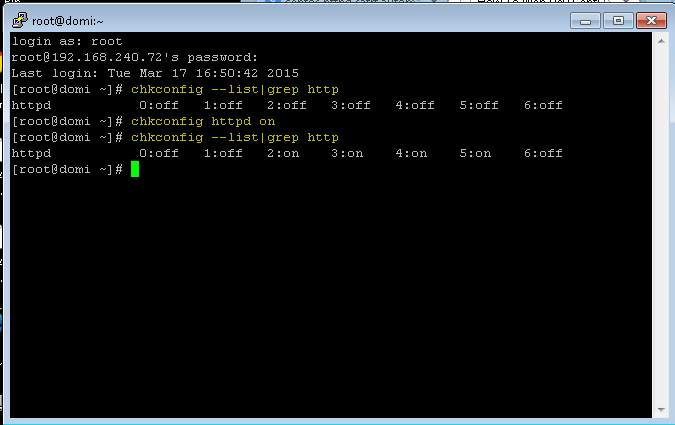
Step 1 – Check to ensure the httpd service (Apache) is installed

[root#] chkconfig --list|grep http

If installed properly, you will see as the output of the command above

[root#] 0:off  1:off  2:off 3:off 4:off 5:off 6:off

Step 2 – Set httpd (Apache) to auto start with the system when re-booted. 


[root#] chkconfig httpd on

Step 3 – Confirm the Apache httpd service is set to auto-start 

Run the same command from Step 1 to see that httpd is set to auto-start
[root#] chkconfig --list|grep http
and will see as the output of the command :
[root#] 0:off  1:off  2:on 3:on 4:on 5:on 6:off

That's it, you're done.  I ran the commands on all servers and they all worked after rebooting. 
Apache httpd started with the system after rebooting. 


Sunday, February 09, 2014

Internet Browser Usage Statistics 2013


Internet Browser Usage Statistics 2013
Major Internet Browsers


Internet Browser Usage Statistics 2013


Chrome has passed Internet Explorer as the Internet browser of choice around the world and that had continued through 2013. Firefox is gaining in usage and some points throughout the year was only points away from Internet Explorer.

When the browser wars began many decades ago, it was not believed that any browser would surpass the might and wide-spread use of IE. Google has done a lot to improve their browser and are working equally as hard to gain traction in the desktop OS arena as well.

Should they commit the resources to an OS as they have done to dominate the browser market we could soon be seeing a new leader in desktop OS deployments.


Saturday, April 07, 2012

Chrome Surpassing Safari and Opera as the Browser of Choice on Apple macs


Image is Courtesy of: www.WebDevelopersNotes.com

Chrome vs Opera vs Safari : Browser Battle


Google's Chrome was released on several years ago and has managed to gain dramatic share in usage,. Although Google also supported Firefox, it seems it's abandoning Firefox and developing Chrome as the competitor of choice to Internet Explorer. Internet Explorer I believe will not be surpassed by Chrome. I find Chrome to a good browser and I use it daily on almost all of my computers but it does not have support for many of the things I need it for. 
For example, I connect to many networking devices and other appliances used in information technology as part of the infrastructure for managing or containing important information system. 


There are many who like and appreciate the "simple and clean interface" but that's all illusion of what a browser today is used for.  I personally dislike not having a menu-bar and no option to add one either. For average web usage such for browsing for videos, music, shopping or social networking, it works well. It lacks the support from developers to enable it to do as much as Internet explorer can. It's a browser, it's not a viable option in many cases to be a front-end application. 


Thursday, March 22, 2012

Configure Idle and Disconnect Timeout Settings in XenApp 6.x

Configure Idle and Disconnect Timeout Settings in XenApp 6.x and XenApp Fundamentals


Configuring idle and disconnect timeout settings in XenApp 6.x and XenApp Fundamentals is crucial for optimizing resource management and enhancing security. These settings determine how long a user session can remain idle before it is automatically disconnected, thereby freeing up system resources for other users. To configure these settings, administrators can access the Citrix App Center, navigate to the desired application server, and specify the appropriate timeout values under the session management settings. By fine-tuning these parameters, organizations can ensure a balance between user convenience and system efficiency. In addition to a better user experience, implementing strict timeout policies can help mitigate potential security risks by reducing the window of opportunity for unauthorized access to idle sessions.

XenApp 6.5 for Windows Server 2008 R2


The session limits applied using the ICA listener configuration utility only affect connections to a XenApp server. The session limits settings in a user policy only apply to XenDesktop.
  •  Click the Start menu, select All Programs, Citrix, Administration Tools, and then click on ICA Listener Configuration.
  • Select the ICA-TCP listener and click the Edit option.  
  • On the Session Limits tab, configure the disconnected sessions timeout in the drop-down menu in the End Disconnected Session section.


    Click Okay and Close.

    These options control how long a user session can stay inactive before disconnecting automatically and releasing system resources for other users. Administrators can set them up by logging into the Citrix App Center, selecting the correct application server, and going to the session management settings. From there, they can adjust the timeout numbers accordingly. Organizations can guarantee a balance between system efficiency and user convenience by adjusting these characteristics. Strict timeout rules can also lessen the window of opportunity for illegal access to idle sessions, which helps reduce possible security threats.  Setting up idle and disconnect timeouts in XenApp 6.x and XenApp Fundamentals is essential to improving security and resource management.


Monday, November 07, 2011

Disable Session Reliability in XenApp 6

Disable Session Reliability in XenApp 6

Disable Session Reliability in XenApp 6. One of the requirements of published apps in Citrix is to limit the user to a single instance of a published application. In Xenapp 6, the checkbox in the published application properties that states limit the user to one session does not seem to do the trick by itself and often brings about errors. Users receive errors like "the server has reached the maximum number of connections" and others of similar effect.

So what everyone does is uncheck the box and find what is different about Xenapp 6 or even worse think there is a larger problem with their Xenapp 6 installation. The solution is simple enough. Limiting session for a user to one per app can be accomplished using a policy. Create a new computer policy for the farm and disable session reliability. Once session reliability is turned off, check the box in application properties to permit only one instance of the published app .

Thursday, December 16, 2010

The time provider NtpClient is configured to acquire time

If your geting the following error in your system log do the following.
On your root level PDC emulator domain controller run the command at a command prompt:
net time /setsntp:ntp2.usno.navy.mil /set /y
Then restart the time service.
On all child domain controllers that are the PDC emulator for the domain run the following command:
net time \\ROOT-DC-name /set
Change ROOT-DC-name to your root level domain controller name running the PDC emulator.
Then restart the time service.
Check your system log. You will see confirmations that the local time service is now syncing with the time source.

Wednesday, October 06, 2010

BlackBerry Torch Doesn't Reconcile Inbox - Syncing


BlackBerry Torch Syncing Problem with BES 4.1, Exchange 2007.
This was a new BlackBerry Torch 9800 series phone. The user had problems with reconciliation from the begining although it was not noticed right away.

His outlook inbox surely did not match the phones renerding of the inbox. Messages that had been removed in Outlook were still showing on the the BlackBerry Torch 9800 phone. Not part of the problem, but this user had ATT service. The BES (BlackBerry Enterprise Server) was version 4.1. There were about another 70 users on the BES server but none of them had this issue. What was done to resolve was firstly to change the number of messages tracked on the BES server and enabled HARD delete tracking.
Those options can be found by logging into the BES 4.1 server:
- Open BlackBerry Manager.
- In the explorer view, click server.
- On the server configuration tab, click edit Properties, then click Messaging.
- For the hard deletes reconciliation option, select True from the drop-down menu
- Restart the BlackBerry enterprise Server services ( I recommend restarting the services from the services control panel applet, not from the BES manager).
To change the number of messages tracked (the default messages tracked is 100)
In the performance section change the value of the Message State database Size to 1000. 1000 is the max.
I also resent the service book for the user, resent the IT policy, resent the peer to peer key.

Thursday, December 31, 2009

Supporting Technology with Technology.: Enable 24 bit color in RDP for XP or 2003 Server


Supporting Technology with Technology.: Enable 24 bit color in RDP for XP or 2003 Server

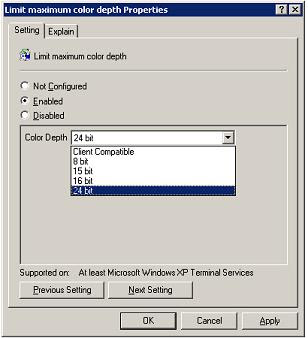
Connect with true color 24 bit rdp to XP or windows 2003 server. A pre-defined default color limit on XP or windows 2003 server limits the color depth of RDP connections made to the the systems to a 16 bit maximum. How to configure the "server side" of remote desktop to accept connections at 24-bit true color. Windows 7, Vista, and Server 2008 already allow higher that 24 bit color by default.

Tuesday, November 24, 2009

What happened to dsa.msc in windows 2008 server


The simple truth is that it's no longer part of the default installation of the server OS, sorry. There's a logical explanation of this for sure. The first that comes to mind is security. Anyone with access to a server can load up users and computers on any member server. This is usually no big deal but with identity theft always on the rise, this is a convenient way to get additional information about users.

With windows 2003 a member server made a nice convenient gateway to AD users and computers by simply executing dsa.msc from the command line or from the start run command. while working out issues on another server, a handy look-up and some times a useful tool to add a test account or to make a quick change to an existing account , was running dsa.msc. Although in environments that had Exchange servers, running this from a member server would not shoe email properties, it was still useful and often meant having to avoid another remote connection to a domain controller.

The image in this post shows the options that should be selected to add this functionality back into member server. The installation of the feature does not require a reboot and only takes several minutes - of course that's on a dual quad core server.
A positive about server support , in particular when the server is an HP or Dell PowerEdge server, is the technology developed and incorporated into server support that facilitates remote access and remote control of servers from the local LAN or through the Internet. The technology that permits this remote control of the console is HP iLO and from Dell it is Dell iDRAC. These two technologies have enabled support to remote control the server's console without having to even have an operating system installed. The technology permits support through the network and on the web.
 

Wednesday, April 22, 2009

OWA-problem-loging-in-reason=0


OWA users received the following message in their address bar and a blank browser page. OWA worked fine before this started occurring. OWA was using forms based login and the work around to allow users to login again was to change from forms based login to standard windows authentication logon. Although hey achieve the same purpose, the users had become used to the forms based login and it was admittedly a nicer interface to use. The users got in the browser address bar:
https://mail.[exserver].gr/owa/auth/logon.aspx?url=https://mail.[exserver].gr/owa/&reason=0

This message would come up for OWA users connecting to an Exchange 2007 server. The solution to this problem was to uninstall microsoft exchange 2007 SP1 update rollup pack 6. uninstalling update rollup 6 solved the problem for the OWA forms based logon but but by uninstalling the rollup, the transport server was removed.

That's right, the transport server role was on this same exchange server and it was completely removed, not disabled or set to automatic startup but removed. This was a tough situation but something had to be done as there was no email going in or out of the email server. One choice was to re-install the update rollup 6 but that may have brought me back to the same problem. I decided to remove update rollup 5.

See, the problem here originated when a in-house guy who does a lot of the desktop work and some server work had some trouble with a blackberry server and decided to install all kinds of updates to the exchange server. The updates were windows updates and they were exchange updates. After updating the heck out of the server the OWA forms based login had been broken. The suggestion was to remove windows updates that were applied and that could resolve the problem.

The problem sure enough was caused by updates being installed while the IIS service was not running. The windows updates were removed and re-installed as prescribed but that did not solve the problem. It was a while before I was able to address this OWA logon problem again and now the time had come. remembering manipulating the windows updates I decided with a little confirmation from forums that the next approach would be to remove exchange updates.

I saw that update rollup 3,4,5,6 were installed and of course started with removing update rollup 6 in effort to make the browser stop hanging with blank page when logging into OWA using HTTPS. At the end of the URL in the address bar was a clue for searching, /owa/&reason=0.

Removing 6 solved the OWA logon problem but removed the hub transport service from the exchange server. I then decided instead of re-installing rollup 6, to remove 5. After removing rollup 5, the hub transport service was back and several other exchange services that were removed with update rollup 6.


Monday, September 22, 2008

ExtractNow - A Utility for Extracting RAR files.

ExtractNow - A Utility for Extracting RAR files

I'd like to get the word out about this little software find. It's known by many I'm sure but I believe that information about this little program that can save lots of time and aggravation when it comes time to deal with a RAR archive needs to spread. For those of you who don't know, RAR archives are very much like zip files. Everyone is probably more familiar with zip files and for good reason, as zip files are more widely used in the the common computer space. There are rar files and I'm sure many of you have encountered them when downloading a software program or mp3 files or whatever. The most common thing to do to extract them is to download WinRAR, install it and then deal with the original problem that you were trying to take care of - almost an hour later. Although the compression algorithm in WinRAR far exceeds that of Zip files, zip has become the defacto standard. with Microsoft incorporating into windows explorer right on the desktop and the common computer folk needing nearly no experience to create or extract the files with the zip files, it's become very common and simple to handle zips. RAR files similarly are compressed files and being that rar compression technology isn't incorporated into the windows explorer shell, needs a program to work. The common thing to do at this point and I've done this many times is to download d install WinRAR and then decompress the files and then get on with what it was you were trying to originally accomplish with the archived files and directories. This to me is annoying as once I download and install the software to extract the current archive, I don't use WinRAR again for a while. If I need to compress something I just zip it using explorer. Yet WinRAR is installed and often becomes a nuisance it the installation changes file associations, bloats the registry a bit, alters the explorer context menu with about 4 or more items listed. There is an alternative to programs like fatter programs like WinRAR. I found a nice little program called ExtractNow from extractnow.com. The download is only one megabyte (1MB) and it installs in seconds - for real. Check the file association for RAR files and that's it. it enables you to drag RAR files right into it's windows for extraction or just use the open file menu - quick easy and simple to use. I have to mention that the drag and drop didn't exactly work 100 percent on Vista but I'm sure it will.
Need to extract .rar compressed files but want the extra bells and wistles of winRAR? Information and user opinion for using ExtractNow to Extract rar files without WinRAR can be found at this personal site.

Tuesday, May 06, 2008

Computer Desktop and Server Management

Computer Desktop and Server Management

Kaseya may have it's roots as a remote control program and indeed they still have this feature in their software application, but it's a whole lot more than remote control. Kaseya offers a complete solution for you to offer your customers a managed solution for their desktops and servers. But it doesn't stop there, their software can also monitor any device that has SMTP protocol enabled on it. One of the better differences that exist with this software package over others that just monitor your devices is that on desktops and servers their is an agent that's pushed out and installed in a silent manner. It's a very small program and once installed updates the server that you host on its own. The connections from the client network to your hosted server is outbound so their are no firewall configurations required on the customer side. Of course on your side to enable the agent to communicate with your server, rules have to be be created to allow for the data to pass from the Internet side to your network and server. 

Kaseya Options

 The installed agent also has an option for the end user to submit a trouble ticket and the trouble tickets can be managed and monitored by a help desk staff. Depending on the number of users there will make a difference on the number of people you would need to track those tickets and provide support. they offer in addition to monitoring and providing support through a ticket system, the option to perform backups of selected desktops and servers. Built into their software is Acronis imaging software which is one of the best applications for imaging available. I've used Acronis Disk director independently of Kaseya's software it works wonders. I had to resize a live server's partition and used Acronis disk director version ten and it did the re-partitioning flawlessly. See blog post on Acronis at these two sites, http://pctechgo.blogspot.com/ and at http://pctechnow.blogspot.com/.

Features:

Kaseya can automate and manage remotely the following IT services:
  • PC Remote Control/Remote Support
  • Patch Management
  • Kaseya Computer Audit and Discovery
  • Remote Desktop Management
  • LAN and Windows Monitoring
  • Help Desk and Trouble Ticketing
  • Software Deployment & Systems Management
  • Network Policy Management
  • Backup and Disaster Recovery
  • Anti-Virus/Anti-Spyware Detection
  • Cross Platform Support (PC and MAC)
  • User State Management
  • Power Management
The cost of the software can be quickly recovered once enough clients are added to your base. The fact that you can provide NOC type services is one of the great advantages that a company can offer to another is supporting their data and network infrastructure is one of the services you or your company provide. Blog home: Information Technology Support - Adventure (Rated PG)

Sunday, March 23, 2008

Are all desktops the same?

computer support

They are not the same in my humble opinion. Although many of the technologies they implement are the same simply because many of them are standards based and in demand by consumers, their implementations vary. The support absolutely varies and I find that HO, especially in the sever category has an edge on all the others especially Dell.

Dell has slipped from my favor many years ago. Before the slip, I believed their support was one of the reasons to buy a Dell. When I was asked what new desktop computer should I get by someone, my reply was spontaneously "Dell". Now, that has been tainted as dell had tainted their support. They believed somehow that people would not notice the big shift and degradation of their support. They are trying to build it back up and are doing an OK job but it's going to take years to fix the problem. Outsourced support has hurt them, no doubt.

So during that dark era for me with Dell, HP was the desktop of choice. HP made and still makes a reliable compacted system with various level systems to suite business, home users, casual users, novelists, etc.

Since the time of this post (now 2022), Dell and HP are still manufacturing desktops and laptops. Gateway is not a thing anymore and IBM has gone to services after a nice run with Lenovo for laptops. I had one , still do, and it ran and still operated perfectly. Upgraded to Windows 10 just fine and getting more life out of it. It's not my main computer but used mostly as a table top computer for quick web searches or playing videos. 

For computer remote support software see http://www.4remotesupport.com/ , Provide PC remote support affordably with web based PC remote support software.

Saturday, February 16, 2008